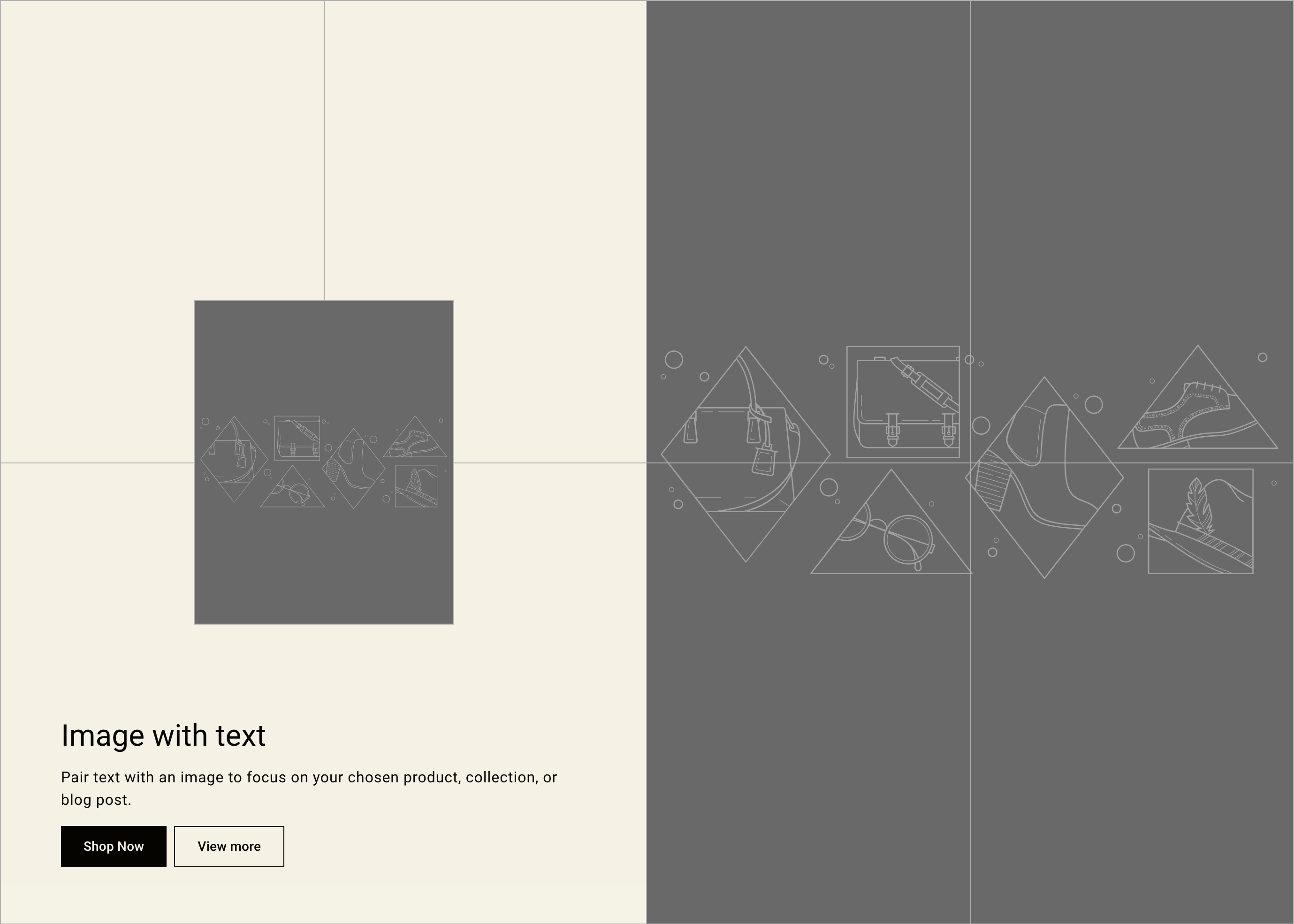
A section that lets you create visually striking banners with important messages, sale announcements or anything else.
| Setting |
Description |
| Spacing position |
Choose from:
- None
- Top
- Bottom
- Top and Bottom
|
| Color scheme |
A set of colors that you can apply to this section. Learn more about color schemes. |
| IMAGE |
|
| Image |
Click Select image to choose an image for the section. Click the Change button to change or remove the image |
| Edit alt text |
Click to set image alt text for search engine optimization and to describe the image for customers using screen readers. |
| Link |
The URL that you want the image to link to. |
| Desktop image position |
Choose between Left and Right. |
| FLOAT IMAGE |
|
| Hidden on mobile |
When checked, the float image will be hidden on mobile view. |
| Image |
Click Select image to choose an image for the section. Click the Change button to change or remove the image |
| Edit alt text |
Click to set image alt text for search engine optimization and to describe the image for customers using screen readers. |
| Link |
The URL that you want the image to link to. |
| CONTENT |
|
| Text alignment |
Choose from Left, Center and Right. |
| Setting |
Description |
| Text |
Title text for the section. |
| Size |
The font size of the heading: Small Medium Large(Default) |
| Setting |
Description |
| Text |
Subheading text |
| Setting |
Description |
| Text |
Displays paragraph-style text. |
| Setting |
Description |
| Label |
The text that displays on the button. |
| Link |
The URL that you want the button to link to. |
| Style |
The style of the button. Choose between Primary, Outline and Underline. |