

Mega menu
Overview
Section titled “Overview”Chord/Mandolin includes a highly customizable Mega Menu to enhance your shop’s Navigation.
Chord/Mandolin theme supports both a standard 3 tier drop-down navigation and a full-width mega menu.
- Menu set up: create a menu in the Navigation admin and connect it to the Main menu portion of the Header
- Connect the Menu( Mega menu block)
- Add Mega image block
Menu set up
Section titled “Menu set up”First you will need to define your menu structure by creating drop-down using the native Shopify menu interface. You can learn more on how to create menu and dropdown by following the official Shopify documentation. In order to properly use mega-menu, you will need to set up a three-levels structure. You can see below an example of how the previous navigation structure looks like in Shopify:
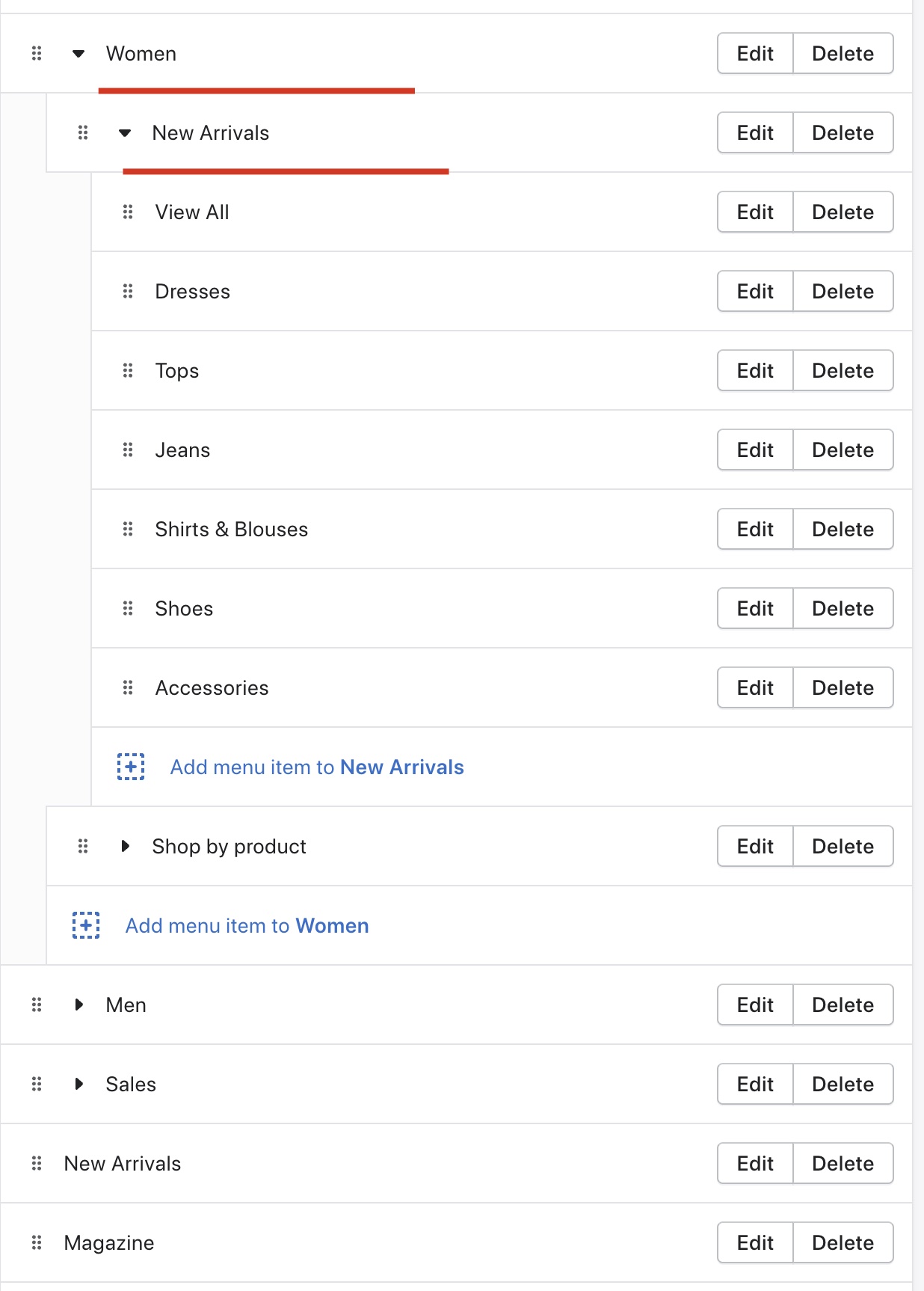
Under the menu item, that you’d like the mega menu to drop down from, add as many title links as you like. Each of these title links must then have its own items nested inside for the dropdown menu to turn into a mega dropdown menu.
Connect the Menu
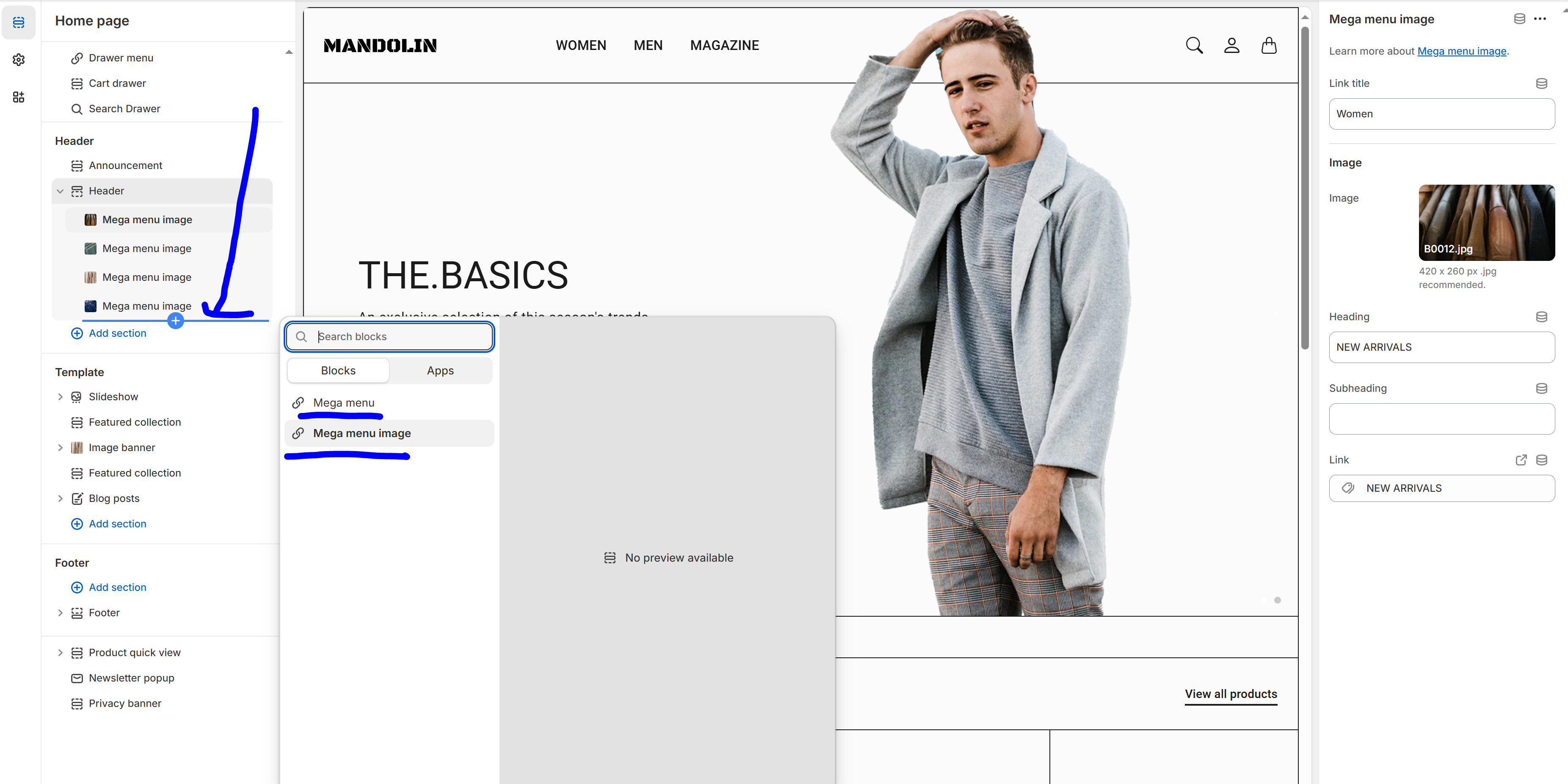
Section titled “Connect the Menu”By default, the theme will display your dropdown menu in a rather traditional way. To transform them into a mega-menu, open the theme editor and and click on the “Header” section.
Then click on the “Add mega menu” button.
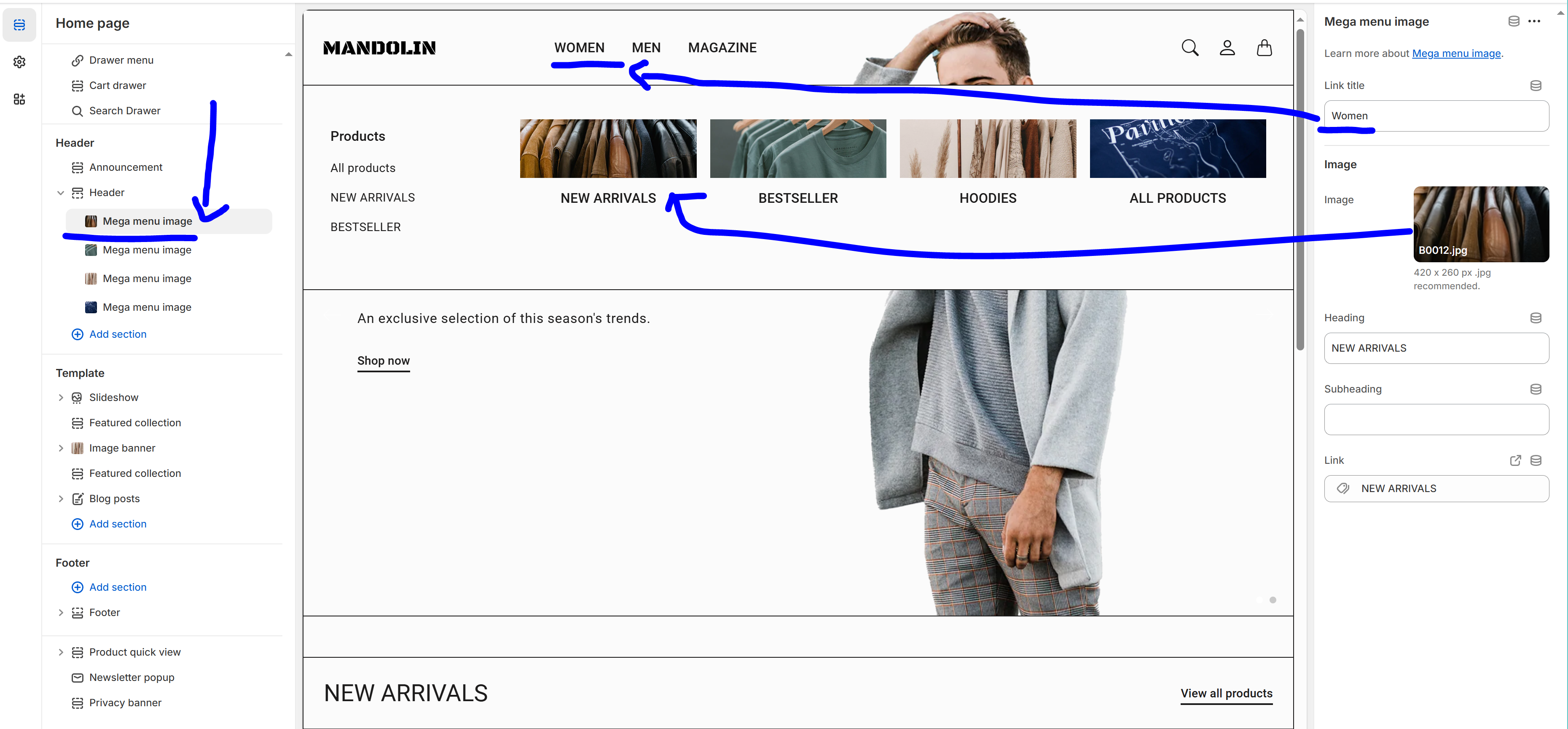
In the “Mega menu” setting, simply enter the name of the menu item that contains the mega-menu (this means that the name entered in “Link title” must match the name of one of the first-level items list). For instance, in our example, the mega-menu is contained within the “Women” link, so we simply need to enter “Women”.
Add Mega image block
Section titled “Add Mega image block”You can optionally upload up to two images for each mega-menu by add “Mega image” block.