

Theme updates
Step 1: Update
Section titled “Step 1: Update”Obtain the latest theme version.
Via Shopify admin
Section titled “Via Shopify admin”If you purchase your theme through the official Shopify theme store, you will be notified that a new version is available directly in your Shopify admin area.
- From Shopify admin, go to Online Store > Themes
- Locate Mandolin, then click • Mandolin version x.y.z available.
- Click Add to theme library.
This will install a “fresh” copy of the theme in an unpublished state on your store.
Via Shopify theme store
Section titled “Via Shopify theme store”- Visit the Shopify Theme Store and click Log in. ⚠️ It is important to log in to the account that you used to purchase the theme. This will prevent you from being asked to purchase the theme again.
- Click here, select your ThemeGoal theme.
- Click Add latest theme version or Add theme
This will install a “fresh” copy of the theme in an unpublished state on your store.
Step 2: Set up
Section titled “Step 2: Set up”While some basic information, such as your store name, collections, and product names will appear in this version if you preview it using the menu for the unpublished version, you’ll likely notice that your theme is in its default state.
Theme editor
Section titled “Theme editor”This method is recommended. You won’t run into errors or incompatibilities.
You will need to go through and manually customize your theme again. Select options such as fonts, colors, and other settings within the Theme editor under Customize — as well as rebuild any sections on the home page and all other page you use. Treat it like it’s a new theme installation.
File migration
Section titled “File migration”Not recommended. You might run into potential errors and/or incompatibilities.
We do not provide support for this method if an error arise.
This method requires you to copy the code from your old theme’s files into your new theme’s version files.
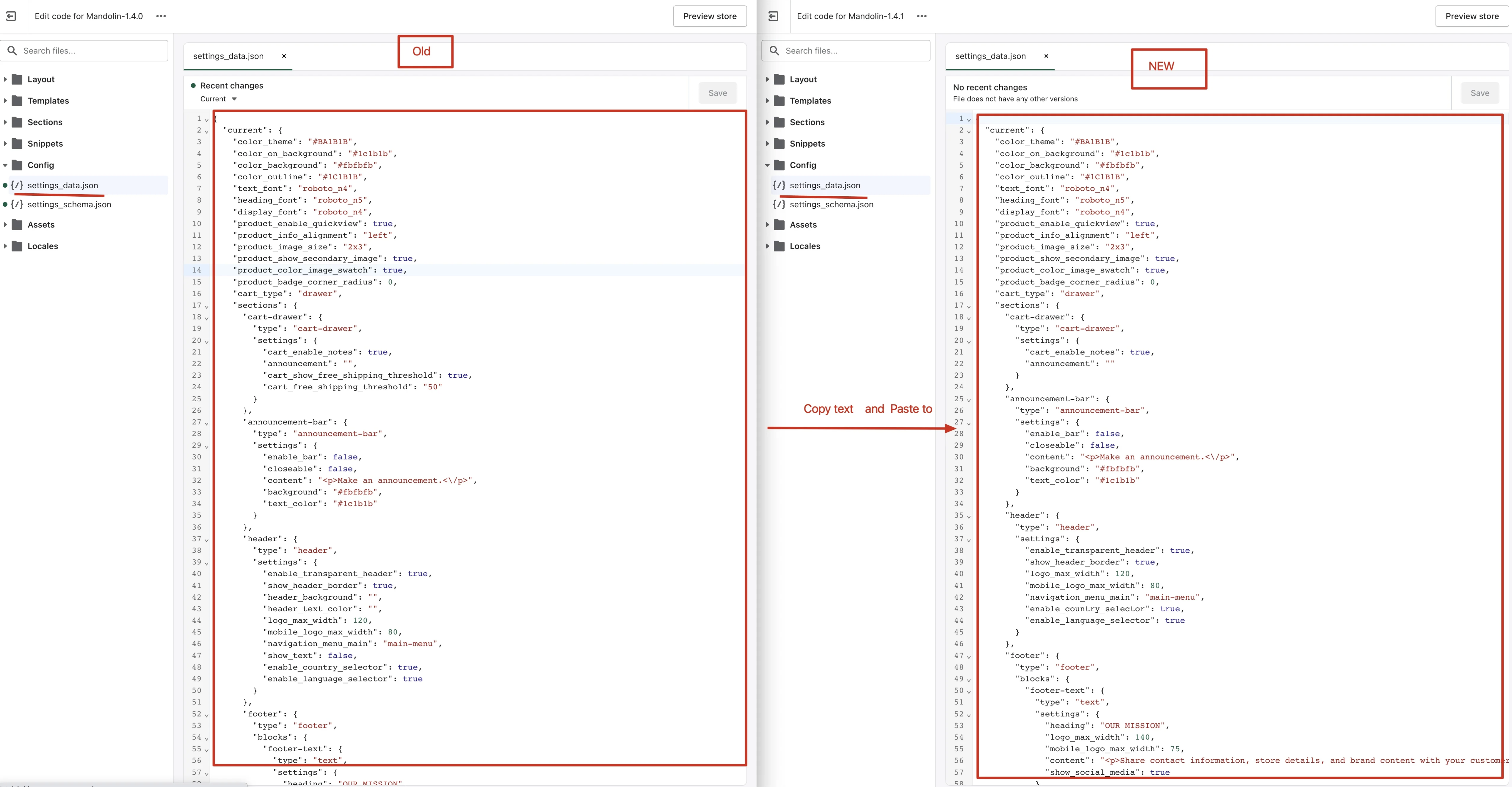
From old version
From Shopify admin, locate your currently published theme
Go to Actions > Edit code
In the search bar type settings_data.json
Open the file, then Select and copy all the code inside
To new version
From Shopify admin, locate your theme you installed in Step 1
Go to Actions > Edit code
In the search bar type settings_data.json
Open the file, then Select and delete all of the code inside
Paste the code that you copied in the previous step
Next
Repeat the previous steps for all the files inside the templates directory that have a dot next to their names.
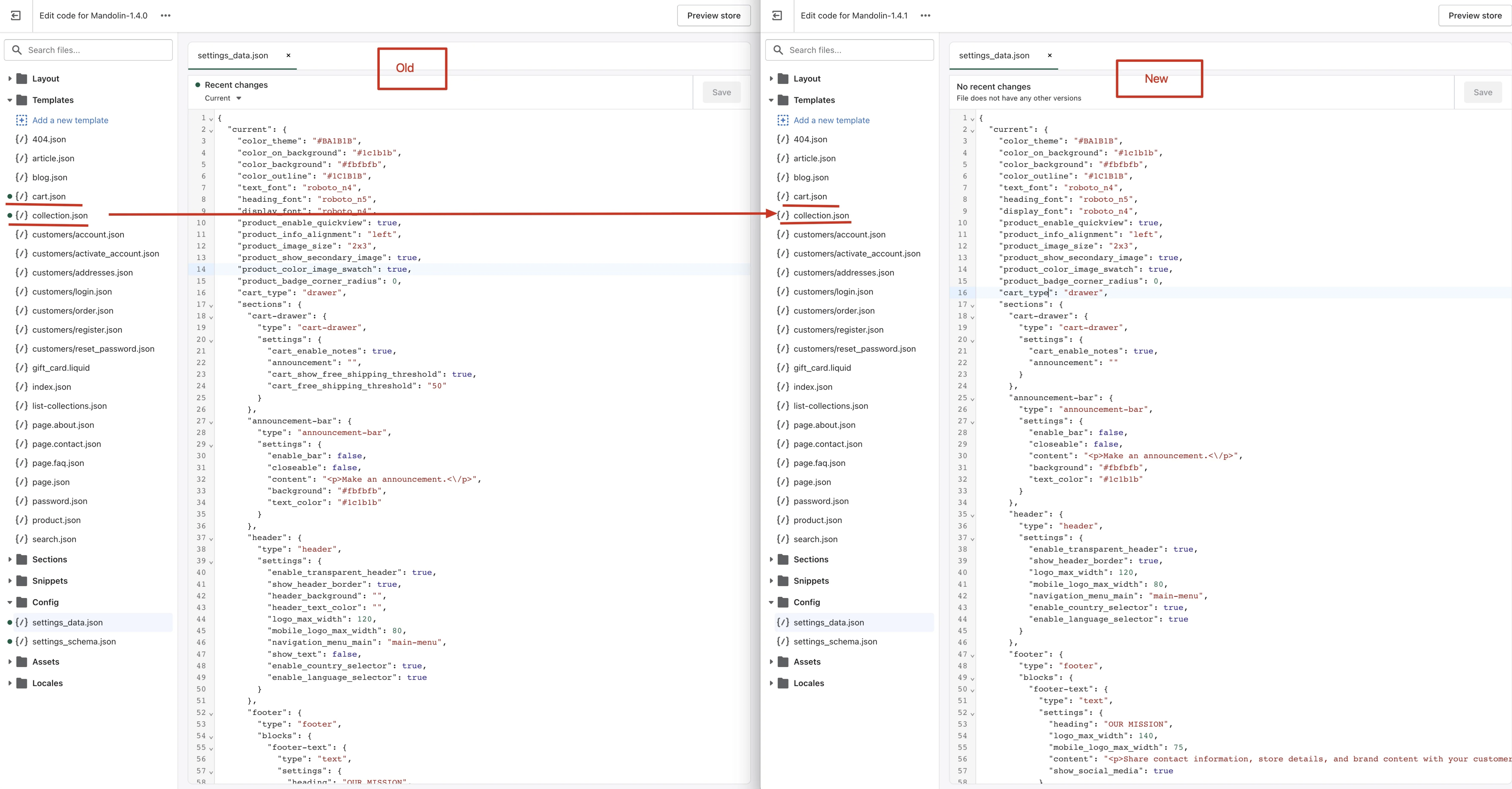
Step 3: Publish
Section titled “Step 3: Publish”Test the new theme extensively and make sure everything works as expected. Once you’re ready, simply publish the new theme as the main theme.
We highly recommend you to not delete the old theme and to keep it two or three months, so that you can always go back to the old one if something bad happen